
Staff Instructions
คำแนะนำสำหรับพนักงาน
What is this tool for? This portal lets you check, without needing to ask the manager, whether a customer's crypto (USDT) payment has actually arrived — using a simple traffic-light system: 🔴 Red = not paid yet, 🟡 Yellow = paid but not enough, 🟢 Green = paid in full.
เครื่องมือนี้ใช้เพื่ออะไร? พอร์ทัลนี้ช่วยให้คุณตรวจสอบได้เองว่าลูกค้าโอนเงินคริปโต (USDT) มาแล้วหรือยัง โดยไม่ต้องถามผู้จัดการ ใช้ระบบสัญญาณไฟง่ายๆ: 🔴 แดง = ยังไม่จ่าย, 🟡 เหลือง = จ่ายแล้วแต่ไม่ครบ, 🟢 เขียว = จ่ายครบแล้ว
1. We only accept one type of coin: USDT (Tether)
USDT is a type of cryptocurrency designed to always be worth roughly $1 USD. We do not accept Bitcoin, Ethereum (as a currency), or any other coin — only USDT.
1. เรารับเหรียญเพียงชนิดเดียว: USDT (Tether)
USDT คือเหรียญคริปโตที่ถูกออกแบบให้มีมูลค่าคงที่ประมาณ 1 ดอลลาร์สหรัฐเสมอ เราไม่รับ Bitcoin, Ethereum (ในฐานะสกุลเงิน) หรือเหรียญอื่นใดทั้งสิ้น รับเฉพาะ USDT เท่านั้น
2. The same coin can travel on different "roads" (networks)
Think of USDT like a parcel, and the network like the delivery courier carrying it. The parcel (USDT) is always the same — but it can be sent using different couriers. Some customers' wallets use the "Ethereum" courier, others use the "Tron" courier. Both deliver the same parcel (USDT), but they are completely separate delivery systems.
2. เหรียญเดียวกันสามารถเดินทางผ่าน "ถนน" ที่ต่างกันได้ (เครือข่าย)
ลองนึกภาพ USDT เป็นพัสดุ และเครือข่ายเป็นบริษัทขนส่งที่นำพัสดุไปส่ง พัสดุ (USDT) จะเหมือนกันเสมอ แต่สามารถส่งผ่านบริษัทขนส่งที่แตกต่างกันได้ กระเป๋าเงินของลูกค้าบางคนใช้บริษัทขนส่ง "Ethereum" บางคนใช้ "Tron" ทั้งสองส่งพัสดุชนิดเดียวกัน (USDT) แต่เป็นระบบขนส่งที่แยกจากกันโดยสิ้นเชิง
3. We accept exactly two couriers: ERC-20 and TRC-20
ERC-20 means USDT is travelling on the Ethereum network.
TRC-20 means USDT is travelling on the Tron network.
These are the only two we accept.
3. เรารับเครือข่ายขนส่งสองแบบเท่านั้น: ERC-20 และ TRC-20
ERC-20 หมายถึง USDT เดินทางผ่านเครือข่าย Ethereum
TRC-20 หมายถึง USDT เดินทางผ่านเครือข่าย Tron
เรารับเพียงสองเครือข่ายนี้เท่านั้น
If a parcel is given to the wrong courier, it cannot simply be handed over to the other one — it gets lost in a system that was never built to talk to the other. This is exactly the same with crypto networks: if a customer sends on the wrong network, the payment can be delayed for a long time or lost permanently, with no easy way to recover it.
ถ้าพัสดุถูกส่งผ่านบริษัทขนส่งที่ผิด จะไม่สามารถโอนไปยังอีกบริษัทได้ง่ายๆ มันจะหลงทางในระบบที่ไม่ได้ถูกสร้างมาให้เชื่อมต่อกัน เครือข่ายคริปโตก็เหมือนกัน ถ้าลูกค้าส่งผิดเครือข่าย เงินอาจล่าช้านานหรือสูญหายอย่างถาวร โดยไม่มีวิธีที่ง่ายในการแก้ไข
This is why every sale starts by asking the customer which network their wallet app shows — it's not a formality, it genuinely protects their money.
นี่คือเหตุผลที่การขายทุกครั้งต้องเริ่มด้วยการถามลูกค้าว่าแอปกระเป๋าเงินของพวกเขาแสดงเครือข่ายใด ไม่ใช่แค่พิธีการ แต่เป็นการปกป้องเงินของลูกค้าอย่างแท้จริง
Before doing anything, ask the customer: "Which network does your wallet app show — ERC-20 or TRC-20?" This is the single most important step. If the wrong network is used, the payment can be delayed or permanently lost.
ก่อนทำอะไรทั้งหมด ให้ถามลูกค้าว่า "แอปกระเป๋าเงินของคุณแสดงเครือข่ายไหน ERC-20 หรือ TRC-20?" นี่คือขั้นตอนที่สำคัญที่สุด ถ้าใช้เครือข่ายผิด เงินอาจล่าช้าหรือสูญหายอย่างถาวร
ถามลูกค้าโดยตรงเสมอ ห้ามคาดเดาเอง
On the home screen, type the price of the sale in Thai Baht (THB). The portal will automatically calculate how much USDT the customer needs to send. Commas are added automatically as you type (e.g. typing 10000 shows as 10,000) — this is just to help you read the number, it doesn't change its value.
ในหน้าแรก ให้กรอกราคาสินค้าเป็นเงินบาท (THB) ระบบจะคำนวณจำนวน USDT ที่ลูกค้าต้องโอนให้อัตโนมัติ ระบบจะเติมจุลภาค (,) ให้อัตโนมัติขณะพิมพ์ (เช่น พิมพ์ 10000 จะแสดงเป็น 10,000) นี่เป็นเพียงการช่วยให้อ่านง่ายขึ้น ไม่ได้เปลี่ยนค่าของตัวเลข
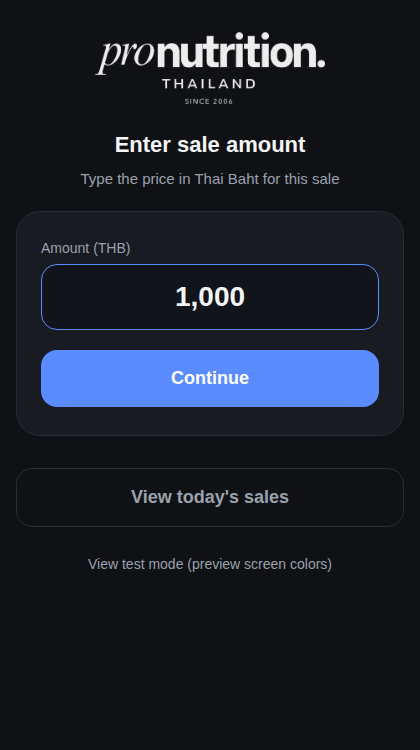
Tap Continue when ready.
กดปุ่ม Continue เมื่อพร้อม
Tap the button that matches what the customer told you in Step 1. Each button shows the network's logo and name clearly.
กดปุ่มที่ตรงกับสิ่งที่ลูกค้าบอกคุณในขั้นตอนที่ 1 ปุ่มแต่ละปุ่มจะแสดงโลโก้และชื่อเครือข่ายอย่างชัดเจน
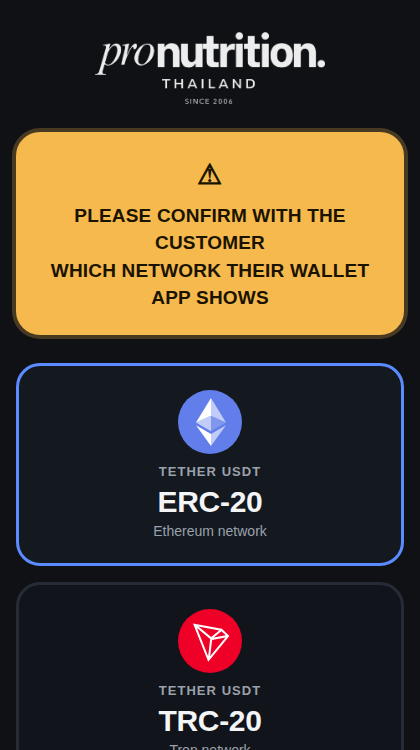
The next screen shows everything the customer needs: the USDT amount, a QR code to scan, and the wallet address. Let the customer scan the QR code with their wallet app, or tap the address box to copy it if they prefer to type it manually.
หน้าจอถัดไปจะแสดงทุกอย่างที่ลูกค้าต้องใช้: จำนวน USDT, QR โค้ดสำหรับสแกน และที่อยู่กระเป๋าเงิน ให้ลูกค้าสแกน QR โค้ดด้วยแอปกระเป๋าเงินของตน หรือแตะที่กล่องที่อยู่เพื่อคัดลอกหากต้องการพิมพ์เอง
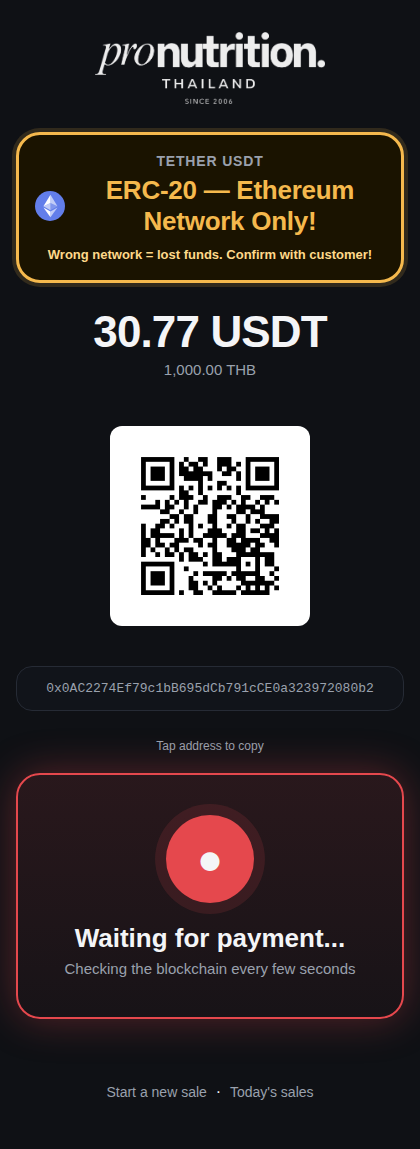
Notice the bold network warning banner at the top — this confirms which network is active for this sale. Double check it matches what the customer is using.
สังเกตแบนเนอร์เตือนเครือข่ายตัวหนาด้านบน นี่คือการยืนยันว่าเครือข่ายไหนถูกใช้สำหรับการขายนี้ ตรวจสอบอีกครั้งว่าตรงกับที่ลูกค้าใช้
This is normal while the customer is paying. The portal checks automatically every few seconds — you don't need to refresh or press anything.
นี่เป็นเรื่องปกติในขณะที่ลูกค้ากำลังจ่ายเงิน ระบบจะตรวจสอบอัตโนมัติทุกๆ สองสามวินาที คุณไม่ต้องรีเฟรชหรือกดอะไรเลย
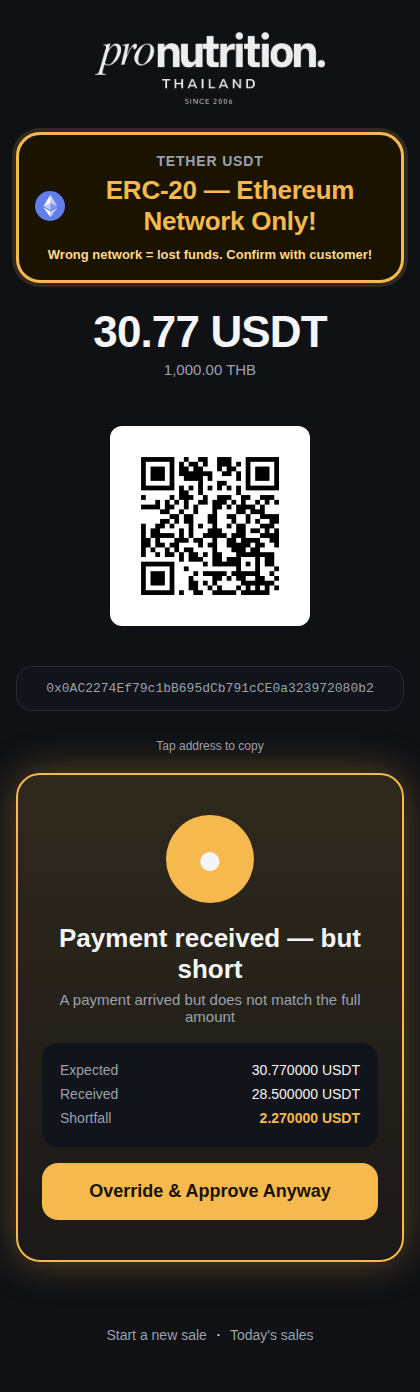
A payment arrived, but it's less than expected. See Step 6 below for what to do.
มีการจ่ายเงินเข้ามาแล้ว แต่น้อยกว่าที่คาดไว้ ดูขั้นตอนที่ 6 ด้านล่างว่าควรทำอย่างไร
The customer paid in full. You may safely give them the products.
ลูกค้าจ่ายเงินครบแล้ว คุณสามารถมอบสินค้าให้ลูกค้าได้อย่างปลอดภัย
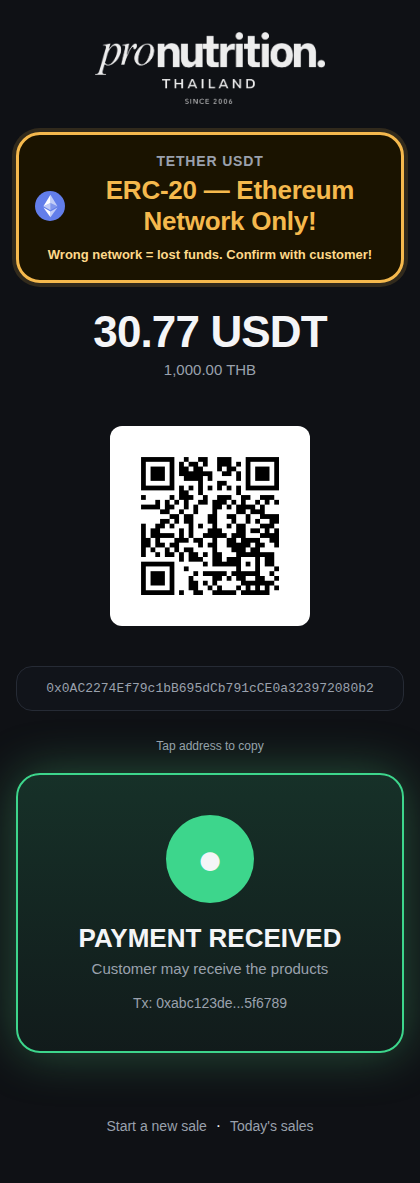
See Step 7 below for what to do.
ดูขั้นตอนที่ 7 ด้านล่างว่าควรทำอย่างไร
The screen will show you the Expected amount, the Received amount, and the Shortfall (how much is missing). You have two choices:
หน้าจอจะแสดงจำนวน Expected (ที่คาดไว้), Received (ที่ได้รับ), และ Shortfall (จำนวนที่ขาด) คุณมีสองทางเลือก:
Option A: Ask the customer to send the remaining amount shown as the shortfall, then wait — the screen will turn green automatically once it arrives.
ทางเลือก A: ขอให้ลูกค้าโอนจำนวนที่ขาดเพิ่ม จากนั้นรอ หน้าจอจะเปลี่ยนเป็นสีเขียวอัตโนมัติเมื่อเงินมาถึง
Option B: If you decide to accept the amount as-is (for example, a very small shortfall), tap "Override & Approve Anyway". This action is recorded for the manager to review later, so only do this if you're confident it's the right call.
ทางเลือก B: ถ้าคุณตัดสินใจรับจำนวนเงินตามที่เป็น (เช่น ขาดเพียงเล็กน้อยมาก) ให้กดปุ่ม "Override & Approve Anyway" การกระทำนี้จะถูกบันทึกไว้ให้ผู้จัดการตรวจสอบในภายหลัง ดังนั้นทำเช่นนี้เฉพาะเมื่อคุณมั่นใจว่าถูกต้อง
สามารถถามก่อนอนุมัติจำนวนที่ขาดได้เสมอ ไม่ใช่เรื่องผิด
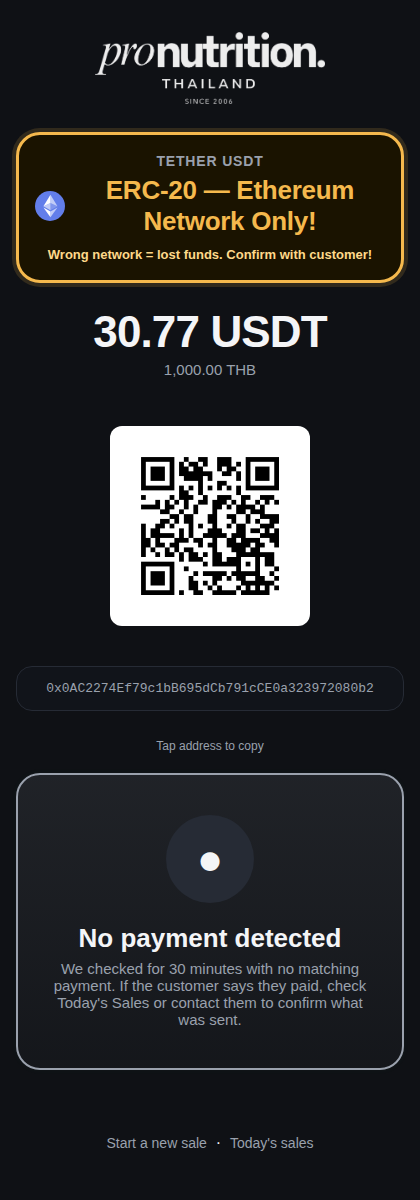
The portal checks for a full 30 minutes before giving up. If you see this grey screen, it means no matching payment was found in that time. Speak with the customer to confirm what happened — they may need to try sending again, or there may have been an issue on their end.
ระบบจะตรวจสอบเป็นเวลา 30 นาทีเต็มก่อนจะหยุด ถ้าคุณเห็นหน้าจอสีเทานี้ แสดงว่าไม่พบการจ่ายเงินที่ตรงกันในช่วงเวลานั้น ให้พูดคุยกับลูกค้าเพื่อยืนยันว่าเกิดอะไรขึ้น ลูกค้าอาจต้องลองโอนใหม่ หรืออาจมีปัญหาทางฝั่งลูกค้า
If the customer insists they already paid, check Today's Sales (see Step 8) or speak with the manager — never assume the payment went through without confirmation on screen.
ถ้าลูกค้ายืนยันว่าจ่ายเงินไปแล้ว ให้ตรวจสอบที่ Today's Sales (ดูขั้นตอนที่ 8) หรือพูดคุยกับผู้จัดการ ห้ามสมมติว่าการจ่ายเงินสำเร็จโดยไม่มีการยืนยันบนหน้าจอ
Tap "View today's sales" on the home screen to see every sale made today, with the time, amount, network, and status of each one. Tap any entry to reopen it and see its live status again.
กดปุ่ม "View today's sales" ที่หน้าแรกเพื่อดูการขายทั้งหมดของวันนี้ พร้อมเวลา จำนวนเงิน เครือข่าย และสถานะของแต่ละรายการ กดที่รายการใดๆ เพื่อเปิดดูสถานะล่าสุดอีกครั้ง
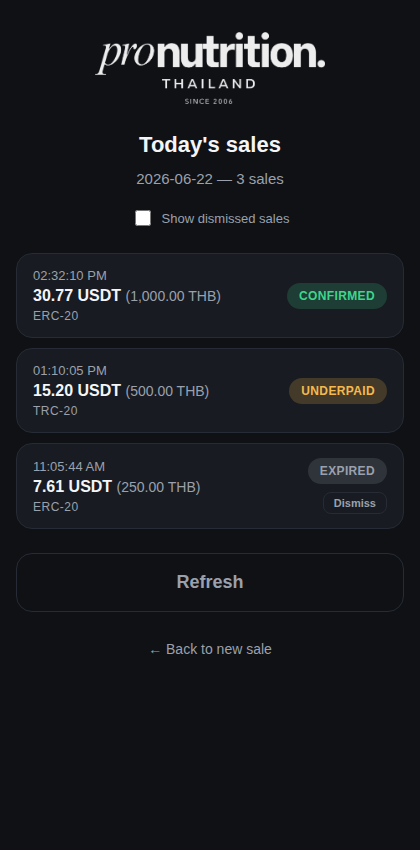
This is especially useful if a customer asks "did my payment go through?" minutes after you've moved on to another sale.
มีประโยชน์มากเมื่อลูกค้าถามว่า "เงินของฉันเข้าไปแล้วหรือยัง?" หลังจากที่คุณไปทำรายการอื่นแล้ว